<img height="1" width="1" style="display:none;" alt="" src="https://px.ads.linkedin.com/collect/?pid=7937762&amp;fmt=gif">
Skip to content

Features > Co-browsing

Less explaining. More showing.

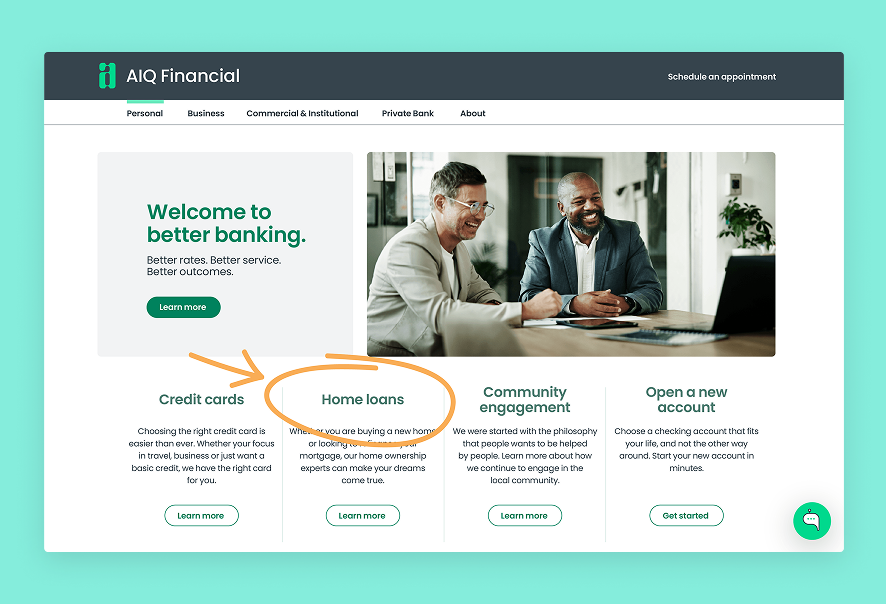
Help account holders find their way with consent-based, on-screen guidance. Point out the next step, highlight key details, and work through questions together.

cb_01_image_header

Co-browsing at a glance

Clear guidance, right on screen

03_card_1_icon_40x40px

Consent-based sessions

Invite account holders to allow on-screen guidance before the session begins.
03_card_2_icon_40x40px

Pointer guidance

Show where to look or what to select with an on-screen pointer, when enabled.
03_card_3_icon_40x40px

Marker and eraser

Highlight important details and clear annotations with configured tools.
03_card_4_icon_40x40px

Requested remote control

Request remote control when enabled and more hands-on assistance would help.
03_card_5_icon_40x40px

Use with or without video

Guide on screen without requiring a video or in-conversation audio session.
03_card_6_icon_40x40px

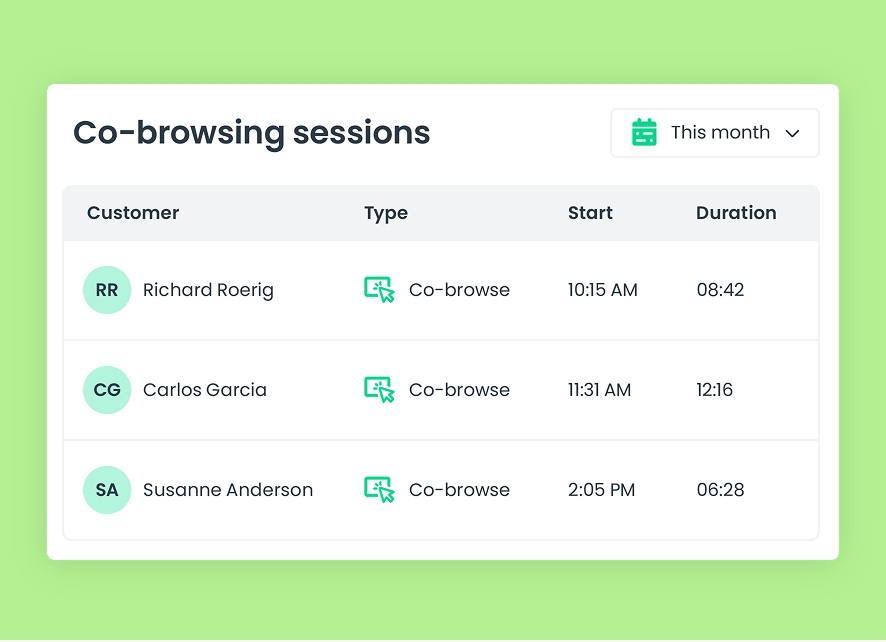
Session reporting

Review co-browsing activity, employee participation, session timing, and duration.

How co-browsing works

Work through it together

Move from describing the next step to showing it, with the account holder’s permission.
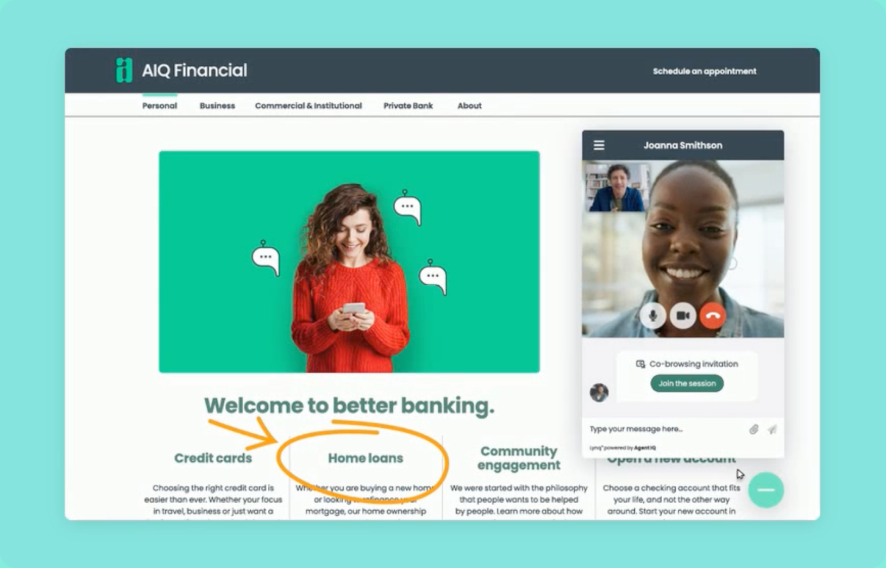
  1. An employee requests a co-browsing session from the conversation
  2. The account holder is prompted to allow the session
  3. The employee guides on screen using the tools enabled by your institution
  4. Either the account holder or the employee can end the co-browsing session
cb_03_image_ui

Designed for better service

A clearer path forward

Help account holders navigate digital experiences with personal guidance from your team.

For account holders

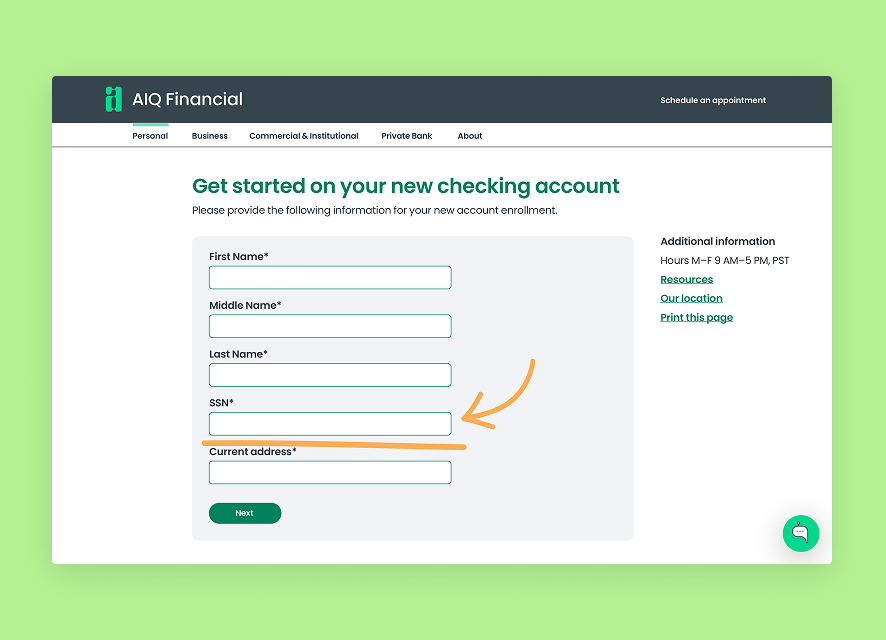
See the next step

Follow on-screen guidance instead of translating a description into clicks. Get help finding information and navigating digital services.
cb_04a_image_left

For employees

Show what you mean

Use configured pointer and annotation tools to make instructions easier to follow. Request remote control when enabled and appropriate.
cb_04b_image_right

For managers

See how guided support is used

Review co-browsing sessions by employee, timing, and duration to understand how your team uses on-screen support.
cb_04c_image_left

Connected support

Add another way to connect

Use co-browsing on its own or alongside a conversation that benefits from voice or video.
06_card_1_icon_40x40px

Video banking

Pair on-screen guidance with a face-to-face conversation when a more personal discussion would help.
06_card_2_icon_40x40px

Authenticated messaging

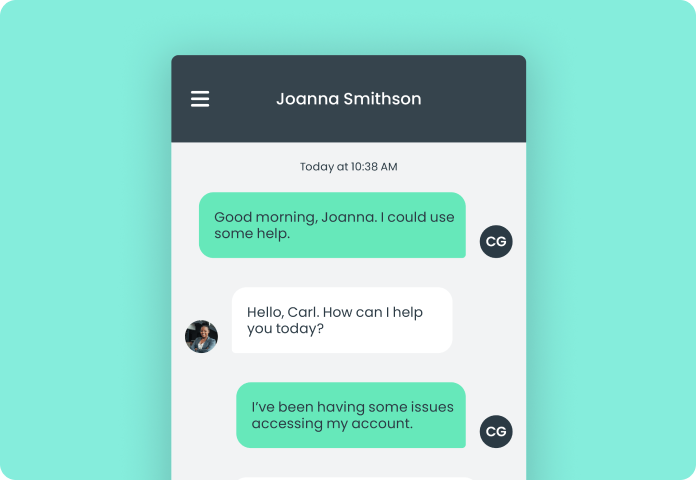
Combine on-screen help with signed-in messaging for account-specific support and an ongoing relationship.
06_card_3_icon_40x40px

In-conversation audio

Talk through the next step with VoIP when an authenticated account holder is online. Audio is optional, not required for co-browsing.

Built for financial institutions

Trust is part of the experience

07_card_1_icon_40x40px

Permission before guidance

The account holder is prompted to allow co-browsing before the session begins. Either party can end it.
07_card_2_icon_40x40px

Permission-controlled access

Enable co-browsing for authorized employees and configure the guidance tools available to them.
07_card_3_icon_40x40px

SOC 2 Type II controls

Support digital service within Agent IQ’s SOC 2 Type II control environment.

Connected capabilities

Frequently asked questions

How does a co-browsing session start?
An employee requests co-browsing from a Lynq® conversation when the feature is enabled for their role. The account holder is prompted to allow the session before on-screen guidance begins.
Does co-browsing require video or audio?

No. Co-browsing can be used without a video or VoIP session. Employees can combine these capabilities when talking through the guidance would improve the interaction.

Which guidance tools are available?
Depending on your institution’s configuration, employees can use a pointer, marker, and eraser, and request remote control. Remote control is requested rather than automatically enabled when co-browsing starts.
Who can end a co-browsing session?
Either the account holder or the employee can end the co-browsing session.